Directive reference
padne is controlled by placing special text directives inside your KiCad schematic file. Each directive wires a lumped element (voltage source, current source, resistor, regulator) to one or more pads in your PCB geometry, or injects a global parameter into the simulation.
This page is the complete reference of every directive padne understands.
Endpoint and value syntax
Every directive that connects to PCB geometry takes one or more endpoints. Endpoints follow these conventions:
The format is
DESIGNATOR.PAD, such asR1.1orU14.A2.Multiple pads can be specified as a comma-separated list, e.g.
p=R1.1,R2.1.
Numeric values accept SI prefixes and units, e.g. 1k or 500mA.
Specifying multiple pads
The directives support specifying multiple physical pads connected to a single lumped element node. Internally, this is implemented by connecting the pads with small resistors in a “star” topology. For a single pad, these resistors are omitted. For voltage sources, they are always omitted and the coupling is implemented with 0 V voltage sources instead.
This is particularly useful for multi-pad consumers (where you do not care or even know which pads will be ingesting the specified current) or for switching elements with intrinsic internal resistance such as multi-pad transistors. For example:
!padne CURRENT i=1.5A f=U1.12,U1.3,U1.21 t=U1.15,U1.5
results in the following lumped elements being wired into the mesh:
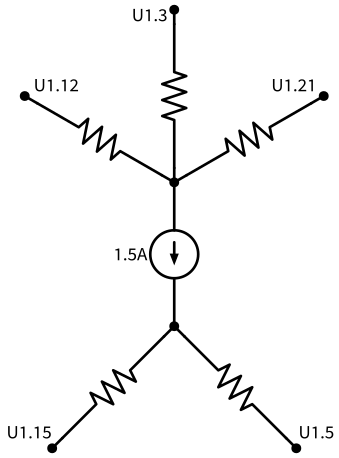
The resistance of the coupling resistors can be adjusted with the
optional coupling parameter (defaults to 1 mΩ).
Lumped element directives
These directives specify a discrete lumped element connected somewhere in the geometry.
VOLTAGE
Creates an ideal voltage source between the specified terminals.
Parameters:
p=ENDPOINTS— Positive terminal(s)n=ENDPOINTS— Negative terminal(s)v=VALUE— Voltage
Example:
!padne VOLTAGE v=3.3V p=U1.VCC n=U1.GND
CURRENT
Creates an ideal current source flowing from one terminal to another.
Parameters:
f=ENDPOINTS— From terminal(s) (current source)t=ENDPOINTS— To terminal(s) (current sink)i=VALUE— Current magnitudecoupling=VALUE— (Optional) Coupling resistance for multi-pad terminals
Examples:
!padne CURRENT i=1.0A f=R2.1 t=R2.2
!padne CURRENT i=3A f=TP2.1,TP3.1,TP4.1 t=TP1.1 coupling=1
RESISTANCE
Creates a resistor between two terminals.
Parameters:
a=ENDPOINTS— Terminal Ab=ENDPOINTS— Terminal Br=VALUE— Resistance valuecoupling=VALUE— (Optional) Coupling resistance for multi-pad terminals
Examples:
!padne RESISTANCE r=0.1 a=R2.1 b=R2.2
!padne RESISTANCE r=10000 a=R3.1,R2.1 b=R3.2 coupling=0.1
REGULATOR
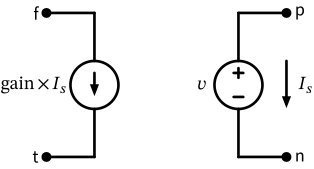
A current-controlled current source that can also set a voltage between its “sense” terminals. This is useful for modeling dependent sources such as LDOs or DC-DC converters.
Parameters:
p=ENDPOINTS— Positive voltage sensen=ENDPOINTS— Negative voltage sensef=ENDPOINTS— Current source terminal (from)t=ENDPOINTS— Current sink terminal (to)v=VALUE— Target voltage (V_p - V_n = v)gain=VALUE— Current gain factorcoupling=VALUE— (Optional) Coupling resistance for multi-pad terminals
The idea is that you pre-compute the gain factor based on the nominal values for the regulator input voltage, output voltage and efficiency. For an LDO the gain is always 1. For a DC-DC converter stepping 12 V down to 5 V with 80 % efficiency, the gain factor is about 0.52. This is illustrated by the schematic below:
Other directives
These do not create new lumped elements; they inject simulation parameters instead.
COPPER
Specifies the copper process parameters for the whole project. Every parameter is optional and overrides the built-in default.
Parameters:
conductivity=VALUE— Copper conductivity in S/m (default 5.95e7)undercut=VALUE— Etch loss per copper edge in m (default 0). A trace drawnwwide is simulatedw - 2*undercutwide; features narrower than2*undercutdisappear. Drill holes keep their nominal size.plating=VALUE— Via barrel wall (plating) thickness in m (default 25u)
Example:
!padne COPPER conductivity=5.97e7 undercut=30u plating=25u
Note
The surface conductivity is computed inside padne by extracting the stackup (copper layer thickness in particular) info from your PCB file. See File → Board Setup → Physical Stackup inside pcbnew.